

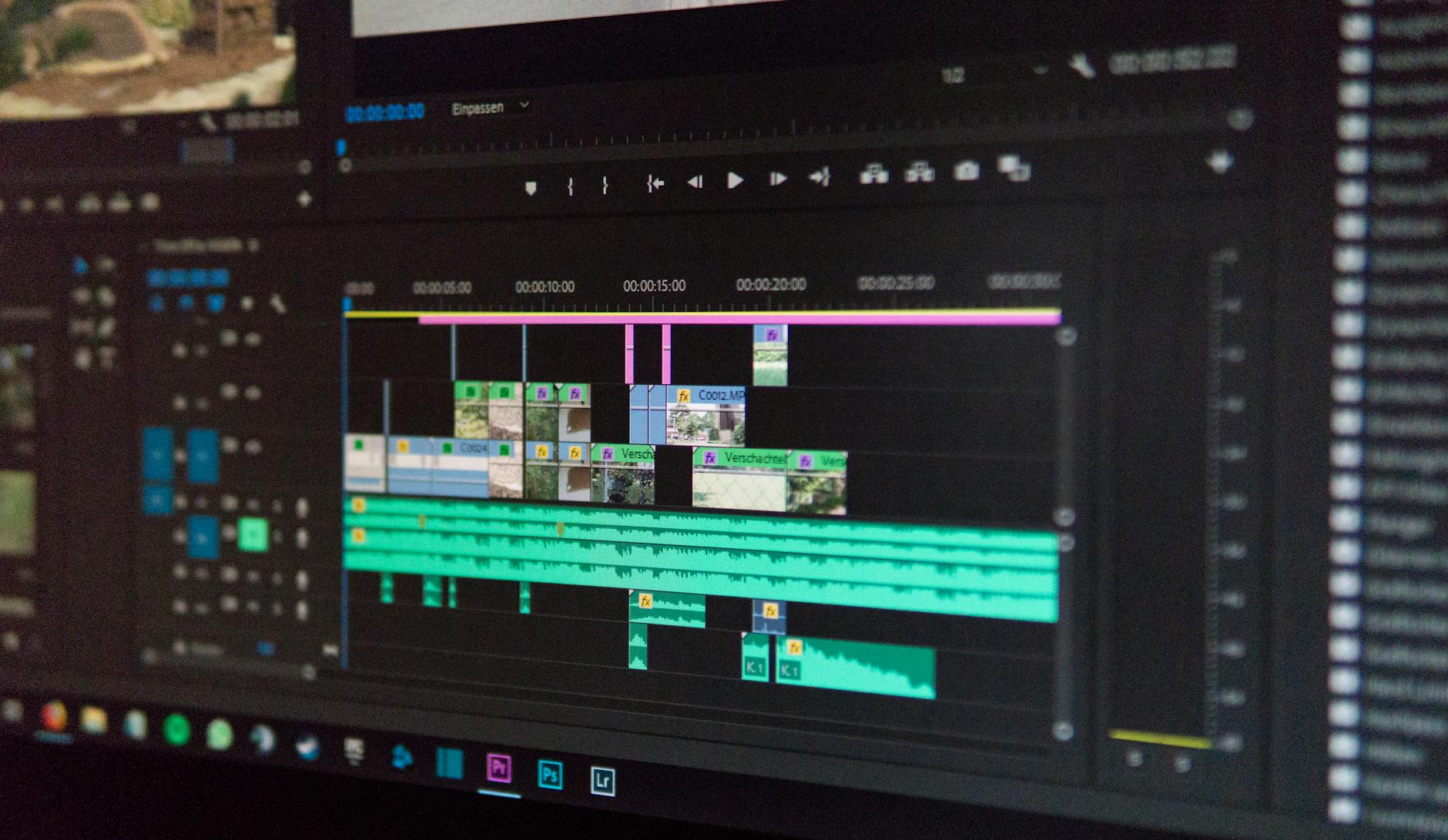
It's past eleven on a Tuesday, and a fifteen-minute podcast file is staring back at a creator who promised three Shorts by morning. Somewhere between the first listen and the final export, they'll work out the difference between a tool that genuinely reframes footage for 9:16 and one that quietly stamps a logo on anything you try to publish. What follows is a working comparison: what's actually free, what's freemium wearing a friendly label, and which editor fits which part of the job.
The short answer
Finding a capable free AI video editor without paying hefty subscriptions or dealing with intrusive watermarks is the top priority for creators in 2026. The best free AI video editor depends on your workflow: CapCut and Clipchamp deliver fast online auto-captions and background removal without watermarks. DaVinci Resolve offers studio-grade AI audio isolation and scene detection at zero cost, while Opus Clip automatically reframes long-form footage into viral 9:16 Shorts.
Why 9:16 rewrites the entire workflow
A Short lives or dies in a vertical frame. The standard export resolution is 1080 by 1920 pixels, and the capture target for most modern phones sits at 60 frames per second. Sounds trivial. It isn't.
Shove a 16:9 interview into a 9:16 box without a plan, and the subject loses their forehead on the first cut.
The plumbing underneath explains why "free" is possible at all. The WebCodecs API lets a browser process video at a low level, encoding and decoding directly instead of shuttling frames through a server. The MediaStream Recording API captures canvas output, the same mechanism that lets a browser-based editor render a caption animation and record the result in real time. Work that once required a rented GPU farm now runs on your laptop.
Whether those economics hold up long term is a separate question, and one worth coming back to.
Tool 1: CapCut — the default starting point
CapCut is where most people land first, and there's a reason. It's built around the two jobs vertical creators repeat all day: automatic captions and subject-aware reframing. Feed it a talking-head clip and the tool tries to track the speaker, keeping them centered in a 9:16 crop. It also handles background removal, which used to be a paid-only luxury.
The honest caveat: free tiers shift constantly. CapCut's feature set and export rules have moved several times, so treat any specific claim about today's limits as provisional. What doesn't change is the fit. If your workflow is phone-first and caption-heavy, this is the shortest path from raw clip to publishable Short.
Tool 2: Opus Clip — built for repurposing
Opus Clip doesn't try to be a full editor. It does one thing—take a long horizontal video and cut it into vertical clips—and that one thing is its entire pitch. Upload a podcast, and it identifies promising segments, reframes them for 9:16, and renders captions.
The trade-off is control. When the AI picks a bad segment boundary—more on that below—you end up editing against the tool instead of with it. For the long-form pipeline, though, it's engineered around exactly the job.
Tool 3: DaVinci Resolve — the free tier that shouldn't be free
This is the outlier. DaVinci Resolve ships professional-grade AI audio isolation and scene detection without a subscription, which is unusual enough to say plainly. Audio isolation pulls a clean voice track out of a noisy room recording. Scene detection finds cut points on its own, which matters when you're slicing a long interview into segments.
The catch is the learning curve. Resolve is a professional NLE, and the free version reflects that. It is not the tool you open for the first time at 11 p.m. with a deadline. It's the tool you grow into—and for creators who plan to build a channel with any consistency, that investment tends to pay off right where the simpler apps hit a wall.
Tool 4: Clipchamp — browser-based, Microsoft-backed
Clipchamp runs in a browser and leans on the same web video processing the WebCodecs and MediaStream Recording APIs make possible. It covers free auto-captions and background removal, and because it lives in the browser, cross-device work is genuinely frictionless. Start on a laptop, finish on a desktop, never sync a project file.
Where it strains is performance. Browser rendering is convenient, but it isn't always fast, and heavy timelines can stutter on older machines. For straightforward Shorts with captions and a few transitions, that's fine. For anything layered, the browser ceiling shows up fast.
Tool 5: InShot — mobile-first vertical editing
InShot was built for phones, and it shows in the best way. Vertical export is native rather than bolted on, which removes an entire category of aspect-ratio headaches. If your capture device is your phone and your editing device is also your phone, this is one of the least frustrating options out there.
The limitation is depth. Mobile editors trade granular control for speed, so color grading and precise audio work are thinner than what you'd get on desktop. For a weekly Shorts cadence, that may not matter. For anything approaching broadcast polish, it will.
Tool 6: Canva — design-first with AI Studio
Canva's pitch has always been visual design, and its AI video features extend that instinct into motion. Templates, brand kits, and AI-assisted text and captions make it fast for creators who care more about a consistent look than about frame-accurate cuts.
That's also the constraint. Canva is a design tool that edits video, not a video editor with design features. For a channel built on recognizable branding, that framing is an advantage. For anything requiring precise pacing, it's a friction point.
Tool 7: Filmora — the free trial with AI framing and captions
Filmora sits between the consumer apps and the pro tools. AI framing and caption generation are part of the pitch, and the interface is friendlier than Resolve while offering more control than a phone app.
The "free" label here deserves scrutiny. Filmora's free access is closer to a trial than a permanent tier, which makes it a different kind of offer from Resolve's genuinely free version. That distinction matters if you're building a workflow you expect to run for years rather than weeks.
A workflow that actually holds together
Strip away the branding and the realistic AI-assisted Shorts pipeline looks like this. You take a long horizontal recording. You run it through automatic framing that tracks the speaker and outputs 9:16 at 1080x1920. You generate captions and either accept the auto-transcription or fix the terms it gets wrong.
Then you trim pauses to tighten pacing. You pick segments. You export. For a 15-minute podcast, that might mean smart framing, animated open captions, dead-air removal, and three 45-second Shorts.
Two of those steps are where the tools still stumble. Auto-caption accuracy on specialized vocabulary, names, and accents remains inconsistent—you will edit text by hand, and the more technical your subject matter, the more you'll edit. AI scene detection struggles with non-linear narratives, too, where a story doubles back on itself and there's no clean visual cue that a scene has changed.
- Meta's head of Instagram, Adam Mosseri, has publicly argued that the platform is committed to short-form video because that's where viewer attention is going—a position that partly explains why so many editors are racing to offer vertical workflows for free.
Counter-view: the case against the auto-cut
The convenient story is that AI editing collapses post-production time. The inconvenient counterargument is that template-driven AI cuts flatten pacing. If every creator uses the same reframing logic and the same caption animation, channels start to look alike—and the algorithm's appetite for the familiar starts working against you instead of for you.
There's a second, blunter criticism. AI handles the repetitive tasks—captions, reframing, silence removal—and none of the decisions that make a Short good.
Pacing, color, the choice to hold a beat instead of cutting: those stay manual, and no free tier has changed that. The tools reduce labor. They don't replace judgment.
Key uncertainties and open questions
The biggest unknown is sustainability. Running AI transcription and video encoding isn't free for the companies offering it, and the cost has to be recovered somewhere—through watermarks, resolution caps, or a future paywall. Free tiers have already moved repeatedly, and the direction of travel has mostly been toward tighter limits. Any workflow you build on a free tier today is one you may be rebuilding next year.
The second gap is measurable accuracy. There's no independent, standardized benchmark for how well these tools handle scene-boundary detection in genuinely messy footage, and vendor claims don't substitute for one. The available data points in one direction—captions are improving, reframing is getting smarter—but "improving" isn't the same as "reliable," and the difference matters when you're publishing daily.
FAQ
Do these tools add watermarks?
It depends on the tier and the tool, not the category. The common misconception is that free AI editors always export low-resolution video with intrusive watermarks. The reality is more uneven: some free tiers are clean, some cap resolution at 720p, and several change the rules as their costs shift.
Can AI editing replace manual work entirely?
No. Automated editing handles repetitive tasks—captions, reframing, pause removal—but pacing, color grading, and story trimming remain creative judgments. Treat the AI output as a first draft, not a finished product.
Can I use these on my phone?
Yes, for several of them. InShot and CapCut are mobile-native, and browser-based options like Clipchamp work on many mobile browsers. Desktop tools like Resolve and Filmora remain computer-first.
Key takeaways
- The vertical frame is non-negotiable: 1080x1920 at a capture target of 60 fps, and every workflow decision follows from that.
- Opus Clip is purpose-built for the long-form pipeline. CapCut and Clipchamp cover free captions and reframing. DaVinci Resolve offers professional AI audio and scene detection with no subscription.
- Auto-caption accuracy on specialized vocabulary and accents still requires manual correction—budget time for it.
- Free tiers are not permanent. The pricing and export limits you rely on today can change without notice.
- AI removes repetitive labor, not creative judgment. Pacing and story trimming stay human.
The practical move is to treat any free tier as a starting point, not a foundation. Build your workflow around the steps that stay human—pacing, story, taste—and let the tools change underneath you.
Reader Discussion
0No comments yet. Be the first to share your thoughts, strategic perspective, or feedback on this guide!
Post a Comment
Join the discussion. All constructive feedback and editorial insights are welcome.